

Laptop strategies can make or break the experience of owning a portable computer. The right approach saves money, boosts productivity, and keeps devices running smoothly for years. Whether someone is buying their first laptop or upgrading an aging machine, a clear plan helps avoid common pitfalls.
This guide covers practical strategies for selecting, optimizing, and maintaining laptops. Readers will find actionable tips they can apply immediately, no fluff, no filler. From picking the perfect specs to extending battery life, these laptop strategies address the full lifecycle of device ownership.
Table of Contents
ToggleKey Takeaways
- Define your primary use cases before buying to avoid overpaying for features you won’t use or struggling with underpowered hardware.
- The $700–$1,200 price range offers the best value for most users, delivering solid laptop performance without premium pricing.
- Optimize startup programs and learn keyboard shortcuts to transform your laptop into a productivity powerhouse.
- Reduce screen brightness to 50–70% and close background apps to significantly extend battery life on the go.
- Regular maintenance—cleaning, managing storage, and running diagnostics—prevents expensive repairs and extends your laptop’s lifespan.
- These laptop strategies cover the full ownership lifecycle, from smart purchasing decisions to long-term device care.
Choosing the Right Laptop for Your Needs
The first laptop strategy starts before any purchase: defining what the device will actually do. A college student writing papers needs different specs than a video editor rendering 4K footage. Getting this wrong means overpaying for features that collect dust, or struggling with hardware that can’t keep up.
Define Primary Use Cases
Buyers should list their top three tasks. For basic browsing, email, and document work, a laptop with 8GB RAM and an integrated graphics card works fine. Creative professionals need at least 16GB RAM, dedicated graphics, and fast storage. Gamers require high-refresh displays and powerful GPUs.
Set a Realistic Budget
Laptop prices range from $300 to $3,000+. The sweet spot for most users falls between $700 and $1,200. This range delivers solid performance without premium pricing. Spending less often leads to frustrating slowdowns within a year. Spending more only makes sense for specialized work.
Compare Key Specifications
Processor speed, RAM, and storage type matter most. An Intel Core i5 or AMD Ryzen 5 handles everyday tasks well. Solid-state drives (SSDs) load programs faster than traditional hard drives, this upgrade alone transforms laptop performance. Screen size depends on portability needs: 13-inch models travel easily, while 15-inch screens suit desk work.
Check Reviews and Warranty Terms
Real user reviews reveal problems specs don’t show. Common complaints about fan noise, keyboard feel, or build quality appear in product feedback. A two-year warranty with accidental damage coverage provides peace of mind, especially for laptops under $1,000.
Essential Performance and Productivity Tips
Owning a capable laptop means little without smart laptop strategies for daily use. Small adjustments compound over time, turning a decent machine into a productivity powerhouse.
Optimize Startup Programs
Most laptops boot with dozens of unnecessary programs running in the background. These hog memory and slow everything down. Windows users can press Ctrl+Shift+Esc to open Task Manager and disable startup apps they don’t need. Mac users find similar options in System Settings under Login Items.
Use Keyboard Shortcuts
Mouse clicking wastes time. Learning 10-15 keyboard shortcuts saves hours each week. Essential ones include Ctrl+C (copy), Ctrl+V (paste), Alt+Tab (switch windows), and Ctrl+F (find text). Power users memorize application-specific shortcuts for programs they use daily.
Organize Files Systematically
A cluttered desktop slows down both the laptop and its owner. Creating a logical folder structure prevents the frantic searching that kills productivity. Cloud storage services like Google Drive or Dropbox add automatic backup and cross-device access.
Keep Software Updated
Outdated software creates security holes and performance issues. Enabling automatic updates for the operating system and key applications ensures laptops run smoothly. Updates often include speed improvements alongside security patches.
Consider External Peripherals
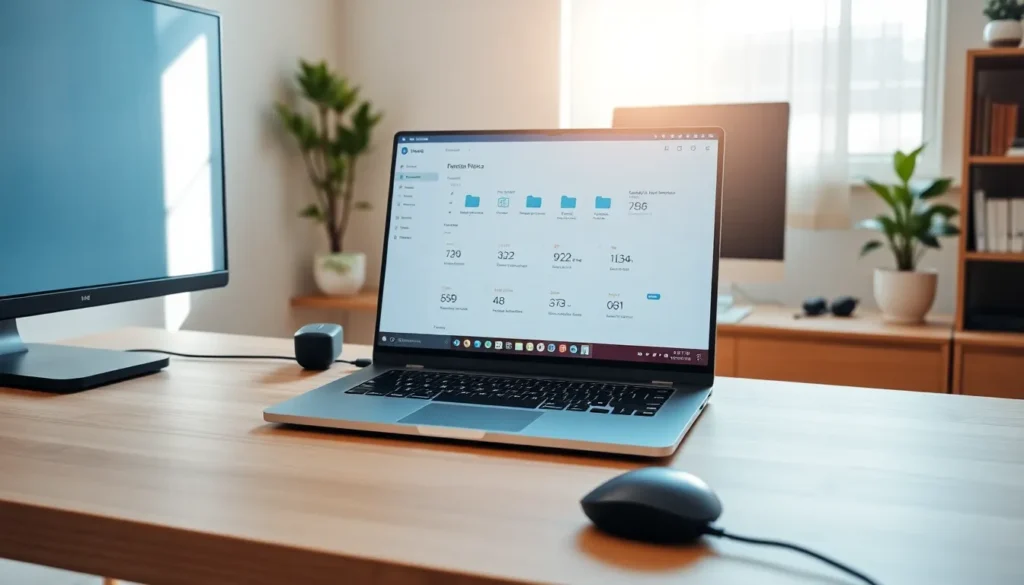
A separate keyboard, mouse, and monitor transform a laptop into a desktop workstation at home. This setup reduces strain during long work sessions and extends the laptop’s useful life by minimizing wear on built-in components.
Extending Battery Life and Portability
Battery life defines the laptop experience for mobile users. These laptop strategies help squeeze more hours from each charge.
Adjust Display Brightness
The screen consumes more power than any other component. Reducing brightness to 50-70% extends battery life significantly without straining eyes. Automatic brightness adjustment adapts to lighting conditions and saves power in darker environments.
Manage Background Applications
Apps running in the background drain batteries even when users aren’t interacting with them. Closing unused browser tabs, quitting idle applications, and disabling Bluetooth when not needed all contribute to longer battery life.
Enable Power-Saving Modes
Both Windows and macOS include built-in power management. Battery Saver mode on Windows and Low Power Mode on Mac reduce background activity and extend runtime. Users can configure these to activate automatically at certain battery percentages.
Carry the Right Accessories
A compact charger with multiple ports reduces travel weight. Portable power banks designed for laptops provide emergency backup. Laptop sleeves protect devices during transport without adding bulk.
Avoid Extreme Temperatures
Batteries degrade faster in hot or cold conditions. Leaving a laptop in a car on summer days damages battery chemistry permanently. Storing devices at room temperature preserves battery health over years of use.
Maintenance Strategies for Longevity
The best laptop strategies include regular maintenance. A few minutes each month prevents expensive repairs and extends device lifespan.
Clean the Exterior and Keyboard
Dust, crumbs, and oils accumulate on laptops. A microfiber cloth removes smudges from screens without scratching. Compressed air blasts debris from keyboard crevices. Monthly cleaning keeps devices looking new and prevents buildup that affects key responsiveness.
Manage Storage Space
Full hard drives slow laptops dramatically. Users should aim to keep at least 15-20% of storage free. Deleting old files, emptying trash, and using disk cleanup utilities all help. External drives or cloud storage handle files that aren’t needed daily.
Monitor System Health
Built-in diagnostic tools identify problems before they become serious. Windows includes Storage Sense and Security scans. Mac users access diagnostics through System Information. Running these checks quarterly catches issues early.
Protect Against Malware
Security software prevents infections that degrade performance. Windows Defender provides solid baseline protection. Users who download files frequently should consider additional antivirus programs. Safe browsing habits, avoiding suspicious links and unknown downloads, remain the best defense.
Handle Hardware Carefully
Physical damage shortens laptop life more than any software issue. Using both hands when opening the lid, avoiding pressure on the screen, and keeping liquids away from devices all prevent costly accidents. A quality laptop stand improves airflow and reduces overheating during intensive tasks.


