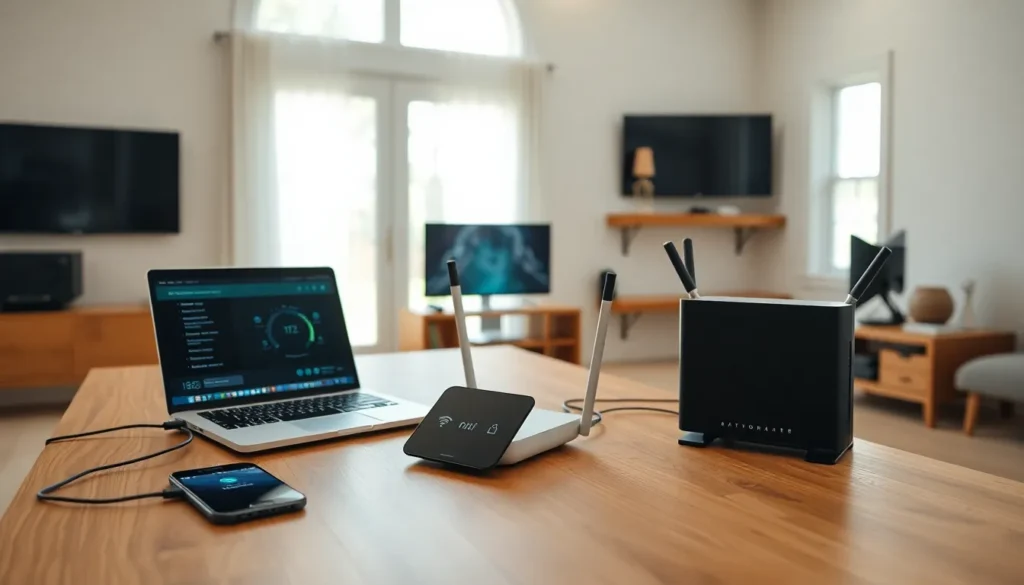

Home networking ideas can transform a frustrating Wi-Fi experience into seamless connectivity throughout every room. Slow speeds, dead zones, and buffering videos plague many households. The good news? Most of these problems have straightforward fixes.
A well-designed home network supports streaming, gaming, video calls, and smart home devices without hiccups. Whether someone lives in a small apartment or a sprawling two-story house, the right setup makes all the difference. This guide covers practical home networking ideas that improve coverage, speed, and reliability. From simple router upgrades to strategic device placement, these solutions work for beginners and tech enthusiasts alike.
Table of Contents
ToggleKey Takeaways
- Assess your current home networking setup by running speed tests and counting connected devices before investing in new equipment.
- Upgrading to a Wi-Fi 6 or Wi-Fi 6E router significantly improves speed, range, and multi-device performance.
- Mesh Wi-Fi systems provide seamless coverage for homes over 2,000 square feet or with multiple floors.
- Position your router in a central, elevated location away from interference sources like microwaves and metal objects.
- Use Ethernet connections for stationary, high-bandwidth devices like gaming consoles and smart TVs for the best reliability.
- Combine wired and wireless home networking approaches to maximize both speed and flexibility throughout your home.
Assess Your Current Network Setup
Before buying new equipment, users should evaluate their existing home networking setup. This step saves money and identifies the real source of connectivity problems.
Start by running a speed test from multiple locations in the home. Services like Speedtest.net or Fast.com show download and upload speeds instantly. Compare these results to the internet plan’s advertised speeds. If speeds drop significantly in certain rooms, that signals coverage issues rather than an ISP problem.
Next, count the devices connected to the network. Modern households often have 15-25 connected devices, including phones, tablets, laptops, smart TVs, gaming consoles, and IoT gadgets. Older routers struggle with this load. Check the router’s age, equipment over four years old likely lacks modern features like Wi-Fi 6 support.
Review the router’s admin panel to see connected devices and bandwidth usage. This reveals which devices hog bandwidth and whether unknown devices have connected without permission. Many routers display this information through a companion app or web interface.
Document dead zones and weak signal areas. Walk through the home with a phone and note where the Wi-Fi signal drops. These findings guide decisions about router placement, range extenders, or mesh systems.
Upgrade Your Router for Better Coverage
A router upgrade often delivers the biggest improvement in home networking performance. Technology advances quickly, and a modern router handles today’s demands far better than older models.
Wi-Fi 6 (802.11ax) routers provide faster speeds, better range, and improved performance with multiple devices. They use technologies like OFDMA and MU-MIMO to communicate with several devices simultaneously. This matters for homes with many connected gadgets competing for bandwidth.
Wi-Fi 6E routers add access to the 6GHz band, offering less congestion and faster speeds for compatible devices. While Wi-Fi 6E devices remain less common, this investment future-proofs the network.
Look for routers with strong processors and adequate RAM. These specs affect how well the router manages traffic and maintains speeds under heavy use. At minimum, choose a router with a dual-core processor and 256MB of RAM.
Quality of Service (QoS) features let users prioritize certain devices or applications. Gaming traffic can take precedence over file downloads, reducing lag during online matches. Many routers include preset profiles for gaming, streaming, and video conferencing.
Consider routers with built-in security features. Automatic firmware updates, malware protection, and parental controls add value beyond basic connectivity. Brands like Asus, TP-Link, and Netgear offer solid options across various price points.
Use Mesh Wi-Fi Systems for Larger Homes
Mesh Wi-Fi systems excel in homes over 2,000 square feet or those with multiple floors. These systems use several units working together to blanket a home with consistent coverage.
Unlike traditional range extenders that create separate networks and cut speeds in half, mesh systems maintain a single network name. Devices seamlessly transition between nodes as users move through the home. This handoff happens automatically without dropped connections.
Popular mesh home networking options include Google Nest Wi-Fi, Amazon Eero, and TP-Link Deco. Most systems start with two or three units and expand with additional nodes if needed. A typical three-pack covers 4,500 to 6,000 square feet.
Placement matters with mesh systems. Position the main unit near the modem and spread satellite units evenly throughout the home. Each unit should maintain line of sight or a clear path to at least one other unit. Avoid placing nodes in cabinets or behind large furniture.
Mesh systems simplify management through smartphone apps. Users can see connected devices, run speed tests, pause internet access for specific devices, and update firmware with a few taps. Some systems integrate with smart home platforms like Alexa or Google Assistant.
The main drawback? Cost. Quality mesh systems run $200-$500 for a starter kit. But, the reliability and coverage often justify the investment for larger homes where a single router falls short.
Optimize Device Placement and Reduce Interference
Strategic placement improves home networking performance without spending a dime. Wi-Fi signals weaken as they pass through walls, floors, and obstacles.
Position the router in a central location, elevated off the floor. A shelf or mount at chest height works well. Avoid placing routers in basements, closets, or corners, these locations limit signal distribution.
Keep routers away from interference sources. Microwaves, cordless phones, baby monitors, and Bluetooth devices all use similar frequencies. Metal objects, mirrors, and aquariums also block or reflect signals. Even thick walls and concrete floors significantly reduce coverage.
Switch to the 5GHz band for nearby devices. While 2.4GHz travels farther and penetrates walls better, it faces more interference from neighboring networks and household electronics. The 5GHz band offers faster speeds with less congestion for devices within range.
Check for channel congestion using a Wi-Fi analyzer app. In apartment buildings, dozens of networks might compete on the same channels. Manually selecting a less crowded channel can boost performance noticeably.
Update router firmware regularly. Manufacturers release updates that fix bugs, patch security holes, and sometimes improve performance. Enable automatic updates if available, or check quarterly for new versions.
Consider Wired Connections for High-Bandwidth Devices
Ethernet cables remain the gold standard for home networking speed and reliability. Wired connections eliminate interference, reduce latency, and deliver consistent performance.
Connect stationary devices that need maximum bandwidth directly to the router. Gaming consoles, desktop computers, smart TVs, and streaming boxes benefit most from Ethernet. A wired connection to a PS5 or Xbox provides lower ping times and prevents the frustrating lag spikes that ruin online gaming.
Cat6 or Cat6a cables support speeds up to 10 Gbps and handle current and future needs. Cat5e cables work fine for most home applications but max out at 1 Gbps. Cable length rarely matters for homes, Ethernet maintains full speed up to 328 feet.
Powerline adapters offer an alternative when running cables isn’t practical. These devices transmit data through electrical wiring. Plug one adapter near the router and another in a distant room to create a wired connection without drilling holes or running cables along walls. Performance varies based on electrical wiring quality, but modern adapters reach 1-2 Gbps theoretical speeds.
MoCA (Multimedia over Coax Alliance) adapters use existing coaxial cable for similar results. Homes with coax outlets in multiple rooms can create a high-speed backbone without new wiring. MoCA 2.5 supports speeds up to 2.5 Gbps.
For the best home networking setup, combine wired and wireless approaches. Keep bandwidth-hungry devices on Ethernet while phones, tablets, and laptops use Wi-Fi freely.