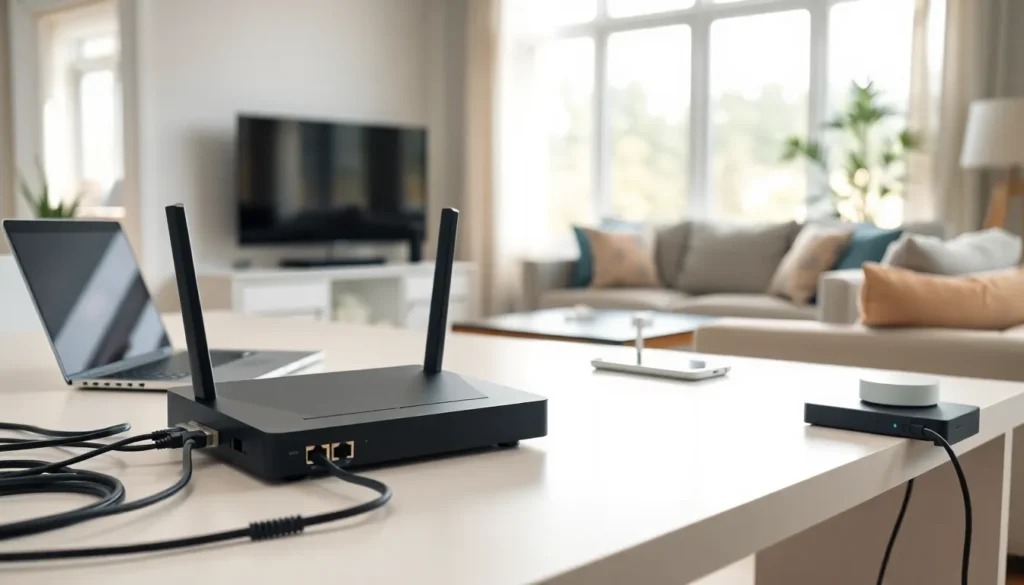

A reliable home networking guide helps homeowners connect devices, stream content, and work remotely without frustration. Most households now have over 20 connected devices, from smart TVs to security cameras, all competing for bandwidth. Understanding how home networks function gives users control over speed, coverage, and security.
This guide covers the fundamentals of home networking, from basic concepts to advanced optimization tips. Readers will learn which equipment they need, how to set everything up correctly, and ways to keep their network fast and secure.
Table of Contents
ToggleKey Takeaways
- A solid home networking guide starts with understanding how modems, routers, and Wi-Fi work together to connect your devices.
- Position your router in a central, elevated location away from interference sources like microwaves and closets for optimal coverage.
- Choose between wired, wireless, or hybrid networks based on your household’s needs—wired for speed, wireless for convenience.
- Secure your home network with WPA3 encryption, strong passwords, and a separate guest network to protect personal devices.
- Use mesh Wi-Fi systems for large homes or multi-floor layouts to eliminate dead zones and maintain seamless connectivity.
- Regularly update router firmware and monitor connected devices to keep your network fast and secure.
Understanding the Basics of Home Networks
A home network connects multiple devices so they can share data and internet access. The network allows computers, phones, tablets, smart home devices, and gaming consoles to communicate with each other and the outside world.
How Home Networks Work
Every home network starts with an internet connection from a service provider. A modem translates the incoming signal into data that devices can use. A router then distributes this connection to multiple devices, either through cables or wireless signals.
Most modern setups use Wi-Fi, which broadcasts radio signals that devices pick up within range. The router assigns each device a unique IP address, creating an organized system where data reaches the correct destination.
Types of Home Networks
Wired networks use Ethernet cables to connect devices directly to the router. This method delivers the fastest speeds and most stable connections. Gamers and remote workers often prefer wired setups for demanding tasks.
Wireless networks offer convenience and flexibility. Devices connect without cables, making them ideal for smartphones, laptops, and smart home gadgets. But, walls, distance, and interference can reduce wireless performance.
Many homes use hybrid networks that combine both approaches. Critical devices like desktop computers and gaming consoles connect via Ethernet, while mobile devices use Wi-Fi.
Essential Equipment for Your Home Network
Building a solid home network requires the right equipment. Each component serves a specific purpose in delivering fast, reliable connectivity.
Modem
The modem connects the home to the internet service provider. Cable modems work with coaxial connections, while DSL modems use phone lines. Fiber connections require an optical network terminal (ONT). Renting a modem from the ISP costs extra over time, so purchasing a compatible unit often saves money.
Router
The router manages traffic between devices and the internet. Modern routers support Wi-Fi 6 or Wi-Fi 6E standards, which handle more devices simultaneously and deliver faster speeds. Dual-band routers broadcast on 2.4 GHz and 5 GHz frequencies. Tri-band routers add a second 5 GHz band for heavy traffic.
When choosing a router for a home networking guide setup, consider the home’s size and number of devices. A family of four with standard usage needs different specs than a household running multiple 4K streams and video calls.
Mesh Systems
Large homes or those with multiple floors benefit from mesh Wi-Fi systems. These use multiple units placed throughout the home to create seamless coverage. Devices automatically connect to the strongest signal as users move around.
Additional Equipment
Network switches expand the number of Ethernet ports available. Powerline adapters send network signals through electrical wiring, reaching rooms where Wi-Fi struggles. MoCA adapters use existing coaxial cables for similar purposes.
Setting Up Your Home Network Step by Step
Following a clear home networking guide process ensures everything works correctly from the start. These steps apply to most standard setups.
Step 1: Position Equipment Properly
Place the router in a central location, elevated off the floor. Avoid closets, cabinets, and areas near microwaves or cordless phones. These locations block or interfere with wireless signals. The ideal spot provides clear line-of-sight to frequently used areas.
Step 2: Connect the Modem
Plug the modem into the wall outlet (coaxial, phone line, or fiber connection). Connect the power cable and wait for the lights to stabilize. This process takes 2-5 minutes as the modem establishes a connection with the ISP.
Step 3: Connect the Router
Use an Ethernet cable to connect the modem to the router’s WAN or internet port. Power on the router and wait for it to boot completely. Most routers indicate readiness through solid LED lights.
Step 4: Configure Network Settings
Access the router’s admin panel through a web browser. The default address is usually printed on the router or in its manual. Change the default admin password immediately. Create a unique network name (SSID) and strong Wi-Fi password.
Step 5: Connect Devices
Join each device to the new network using the created password. For wired connections, plug Ethernet cables into the router’s LAN ports. Test the connection speed using a tool like Speedtest to verify everything works properly.
Tips for Optimizing Network Performance and Security
A well-configured home network runs faster and stays protected from threats. These optimization tips help users get the most from their setup.
Improve Speed and Coverage
Update router firmware regularly. Manufacturers release updates that fix bugs and improve performance. Most routers check for updates automatically, but manual checks ensure nothing gets missed.
Choose the right frequency band for each device. The 5 GHz band offers faster speeds over shorter distances. The 2.4 GHz band travels farther but runs slower and faces more interference from other devices.
Reduce interference by changing Wi-Fi channels. Apps like Wi-Fi Analyzer show which channels nearby networks use. Switching to a less crowded channel can boost speeds significantly.
Strengthen Security
Use WPA3 encryption if the router supports it. WPA2 remains acceptable, but WPA and WEP are outdated and vulnerable. A strong password should include at least 12 characters with letters, numbers, and symbols.
Create a guest network for visitors. This keeps them off the main network where personal devices and files reside. Many routers offer this feature in their settings menu.
Disable WPS (Wi-Fi Protected Setup). While convenient, WPS has security flaws that attackers can exploit. Manual password entry provides better protection.
Monitor Network Activity
Check which devices connect to the network periodically. Unknown devices could indicate unauthorized access. Most router admin panels display connected devices with their names and IP addresses.
Consider enabling parental controls for households with children. These features restrict access to certain websites and limit screen time on specific devices.