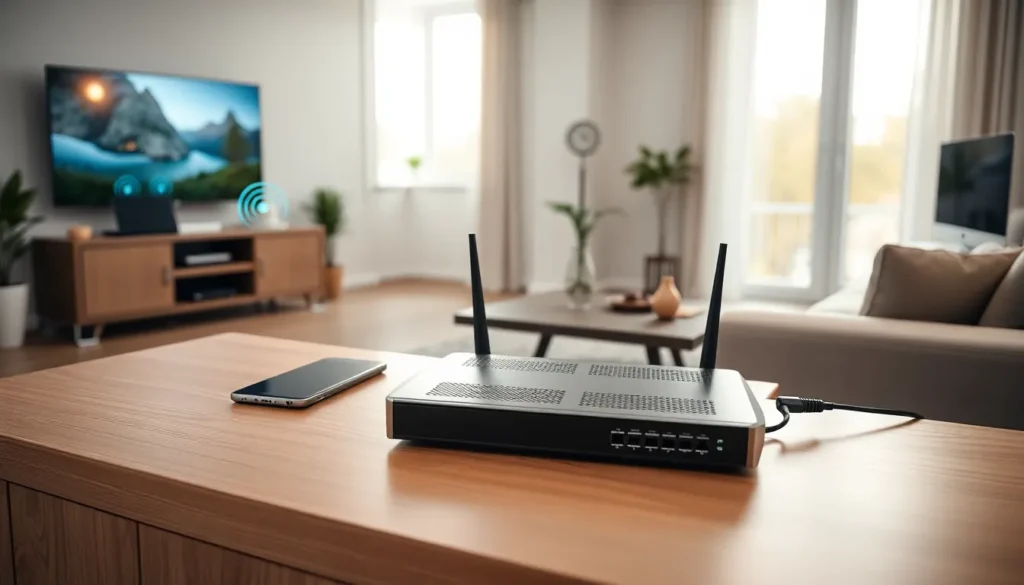

Home networking connects every smart device, computer, and streaming gadget in a household. A well-designed home network delivers fast internet to every room and supports multiple users without slowdowns. This guide covers everything needed to build, optimize, and secure a reliable home network. From routers and modems to Wi-Fi extenders and security protocols, readers will learn practical steps to create a seamless connected home experience.
Table of Contents
ToggleKey Takeaways
- A well-designed home networking setup uses a router as the central hub to distribute internet to all devices via Wi-Fi or Ethernet connections.
- Position your router in a central, elevated location away from metal objects and appliances to maximize signal coverage throughout your home.
- Use WPA3 encryption and change default router credentials immediately to protect your home network from security threats.
- Mesh Wi-Fi systems eliminate dead zones in larger homes by using multiple access points for consistent coverage.
- Enable Quality of Service (QoS) settings to prioritize bandwidth for video calls and gaming over background downloads.
- Connect gaming consoles, streaming devices, and home office computers via Ethernet cables for faster, more reliable speeds than Wi-Fi.
Understanding the Basics of Home Networks
A home network is a group of devices connected to each other and to the internet through a central point. This setup allows computers, smartphones, tablets, smart TVs, and IoT devices to share resources and communicate.
How Home Networks Work
Most home networks use a router as the central hub. The router connects to a modem, which receives the internet signal from an ISP (Internet Service Provider). The router then distributes this connection to all devices via Wi-Fi or Ethernet cables.
There are two main types of connections in home networking:
- Wired (Ethernet): Provides faster, more stable connections. Ideal for gaming consoles, desktop computers, and smart TVs.
- Wireless (Wi-Fi): Offers convenience and mobility. Best for laptops, smartphones, and tablets.
Common Home Network Terms
Understanding a few key terms helps with setup and troubleshooting:
- SSID: The name of a wireless network that appears when searching for Wi-Fi.
- Bandwidth: The maximum data transfer rate of a network connection.
- IP Address: A unique identifier assigned to each device on a network.
- DHCP: A protocol that automatically assigns IP addresses to devices.
Most modern home networks operate on dual-band frequencies, 2.4 GHz and 5 GHz. The 2.4 GHz band covers larger areas but offers slower speeds. The 5 GHz band delivers faster speeds over shorter distances.
Essential Equipment for Your Home Network
Building a reliable home network requires the right equipment. Here’s what most households need.
Router
The router is the backbone of any home network. It manages traffic between devices and the internet. When selecting a router, consider:
- Wi-Fi 6 (802.11ax): The latest standard offers faster speeds and handles more devices simultaneously.
- Dual-band or Tri-band: Tri-band routers add a second 5 GHz channel for less congestion.
- MU-MIMO technology: Allows the router to communicate with multiple devices at once.
Modem
The modem connects a home network to the ISP. Some users rent modems from their provider, while others purchase their own to save on monthly fees. A DOCSIS 3.1 modem works well for cable internet connections up to 1 Gbps.
Mesh Wi-Fi Systems
Larger homes often struggle with dead zones. Mesh systems use multiple access points to blanket a home in consistent Wi-Fi coverage. Popular options include devices from Google, Eero, and Netgear Orbi.
Additional Equipment
- Ethernet cables: Cat6 or Cat6a cables support speeds up to 10 Gbps.
- Network switches: Expand the number of wired connections available.
- Powerline adapters: Use electrical wiring to extend network connections to distant rooms.
- Wi-Fi extenders: Boost signal range, though they may reduce overall speeds.
Step-by-Step Setup for Your Home Network
Setting up a home network takes about 30 minutes with the right approach. Follow these steps for a smooth installation.
Step 1: Position the Router
Place the router in a central location. Avoid corners, closets, and areas near large metal objects or appliances. The router should sit elevated, on a shelf or mounted on a wall, for better signal distribution.
Step 2: Connect the Hardware
- Connect the modem to the ISP’s coaxial or fiber cable.
- Plug an Ethernet cable from the modem into the router’s WAN port.
- Power on both devices and wait for indicator lights to stabilize.
Step 3: Access Router Settings
Open a web browser and enter the router’s IP address (commonly 192.168.1.1 or 192.168.0.1). Log in using the default credentials found on the router label or in the manual.
Step 4: Configure the Network
- Change the default SSID to a unique name.
- Set a strong Wi-Fi password using WPA3 encryption (or WPA2 if WPA3 isn’t available).
- Update the router firmware to the latest version.
- Enable the guest network for visitors.
Step 5: Connect Devices
Search for the new network name on each device. Enter the password to connect. For devices requiring stable connections, use Ethernet cables instead of Wi-Fi.
Optimizing Network Performance and Coverage
A home network performs best when optimized for the household’s specific needs.
Reduce Interference
Wi-Fi signals degrade due to interference from other electronics. Microwaves, cordless phones, and baby monitors operate on the 2.4 GHz frequency and can disrupt connections. Switch sensitive devices to the 5 GHz band whenever possible.
Update Firmware Regularly
Router manufacturers release firmware updates that fix bugs and improve performance. Check for updates monthly through the router’s admin panel or enable automatic updates.
Use Quality of Service (QoS)
QoS settings prioritize bandwidth for specific applications. This feature ensures video calls or online gaming receive priority over background downloads. Most modern routers include QoS options in their settings menu.
Optimize Router Channels
In apartment buildings and dense neighborhoods, multiple home networks compete for the same Wi-Fi channels. Use a Wi-Fi analyzer app to identify the least congested channel, then manually set the router to use it.
Consider Wired Connections
Ethernet connections deliver faster and more reliable speeds than Wi-Fi. Connect gaming consoles, streaming devices, and home office computers directly to the router or a network switch for the best performance.
Securing Your Home Network
Every home network faces potential security threats. Taking preventive measures protects personal data and connected devices.
Change Default Credentials
Routers ship with default usernames and passwords that hackers know. Change both immediately during setup. Use a unique, strong password with at least 12 characters, including numbers and symbols.
Enable WPA3 Encryption
WPA3 provides the strongest encryption for home networks. If devices don’t support WPA3, use WPA2-AES as a fallback. Avoid WEP encryption, it’s outdated and easily cracked.
Create a Guest Network
A separate guest network keeps visitors’ devices isolated from primary devices like computers and smart home hubs. This limits exposure if a guest’s device carries malware.
Disable Remote Management
Unless remote access is necessary, turn off remote management features. This prevents external access to router settings.
Monitor Connected Devices
Check the router’s admin panel periodically for unfamiliar devices. Most routers display a list of connected devices with their IP and MAC addresses. Remove any unknown connections and change the Wi-Fi password if suspicious activity appears.
Use a Firewall
Most routers include built-in firewalls. Ensure this feature is enabled to block unauthorized incoming traffic. For additional protection, consider network monitoring software that alerts users to unusual activity.